

Diff command (/diff)
Section titled “Diff command (/diff)”View and review workspace changes, commit history, and agent turn diffs interactively within the TUI.
Overview
Section titled “Overview”The /diff command opens the Interactive Diff Viewer, a full-screen panel that allows you to inspect changes in your workspace and conversation history. It supports three distinct modes (VCS, Turn, and Commit) and provides an interactive review workflow where you can add line-by-line comments to steer the agent’s next steps.
Interactive diff viewer panels
Section titled “Interactive diff viewer panels”To open the diff viewer, follow these steps:
- Type
/diffin the prompt box. - Press Enter.
/diffNavigation and controls
Section titled “Navigation and controls”The diff viewer operates in three modes, which you can cycle through using Tab (or → / ← arrow keys):
- VCS mode: Shows a list of all modified and untracked files in your active workspace:
- Supports Git, Mercurial (Hg), and Jujutsu (JJ) automatically.
- Use ↑/↓ to navigate the file list, and Enter to open the detail view.
- Turn mode: Shows the changes introduced by the agent in each turn of the current conversation:
- Useful for reviewing the agent’s work step-by-step.
- Use ↑/↓ to navigate, and Enter to view details.
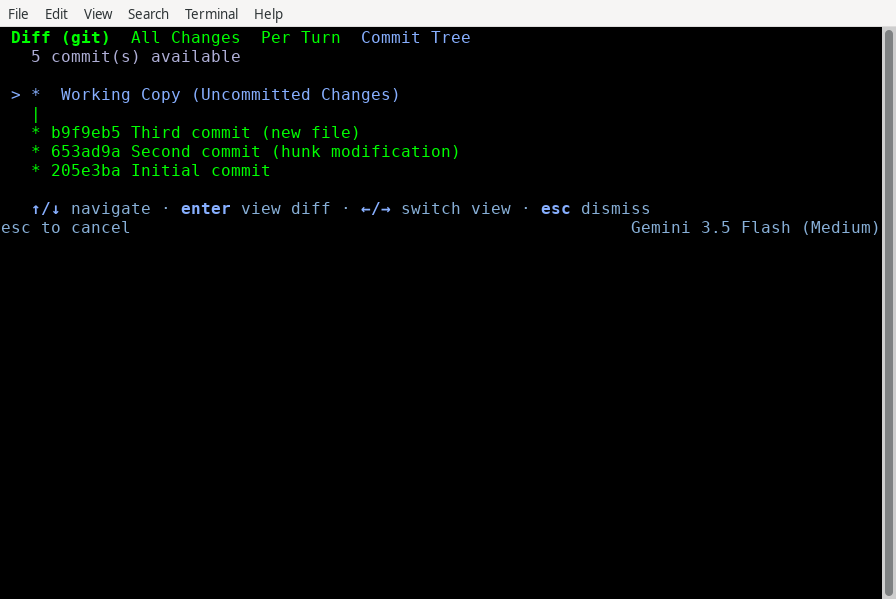
- Commit mode: Renders an interactive commit graph/tree of your repository:
- Use ↑/↓ to navigate the commit chain.
- Use ←/→ to navigate to adjacent branches in the graph.
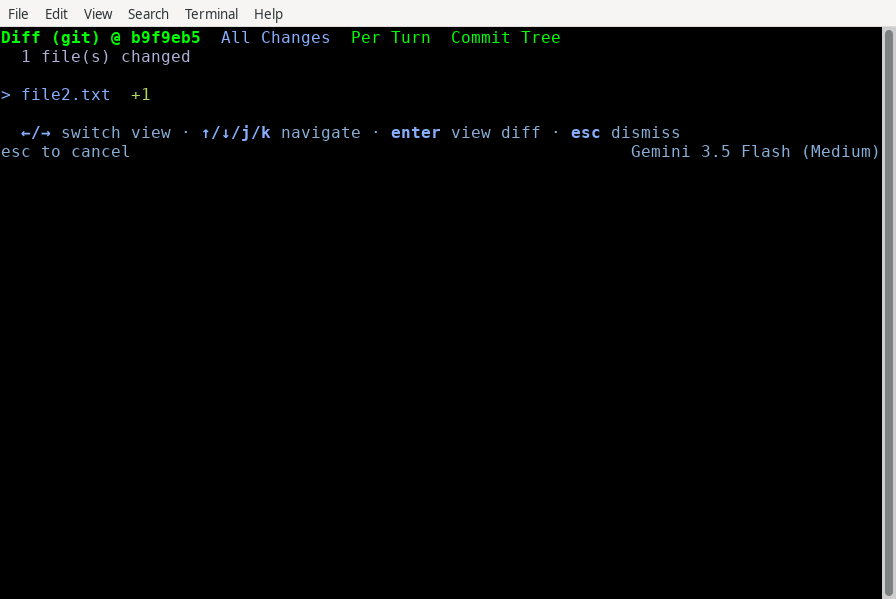
- Press Enter to load the diff for the selected commit.
Step-by-step walkthrough
Section titled “Step-by-step walkthrough”Here is how to use the diff viewer to review changes, add comments, and steer the agent.
Reviewing workspace changes (VCS mode)
Section titled “Reviewing workspace changes (VCS mode)”When you run /diff, it opens in VCS Mode by default (if you have uncommitted changes) and displays a list of modified and untracked files:
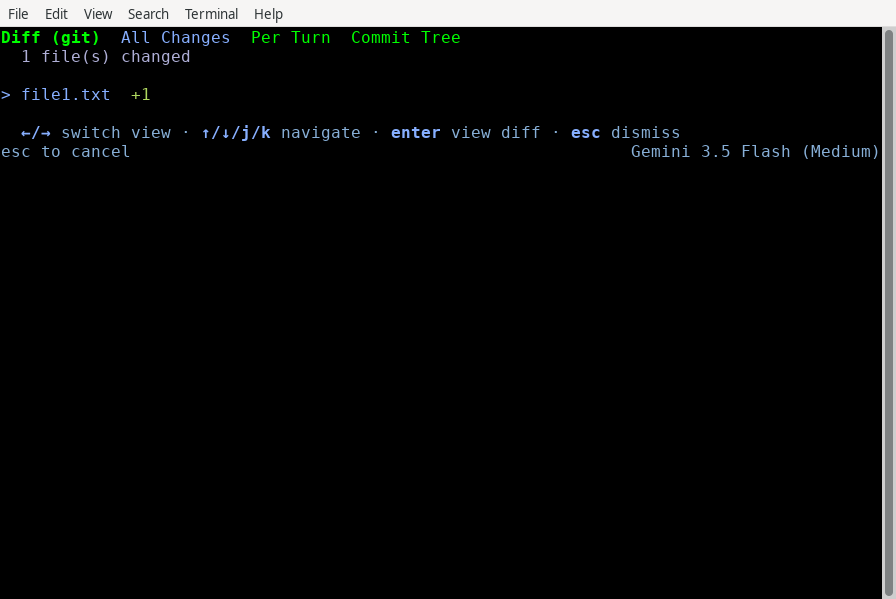
Press Enter on a file to open its Detail View, which shows the unified diff:
- Use ↑/↓ (arrow keys) to scroll the diff.
- Use J/K (or ←/→) to quickly swap between files without returning to the list.
- Use N/Shift + N to jump to the next/previous diff hunk.
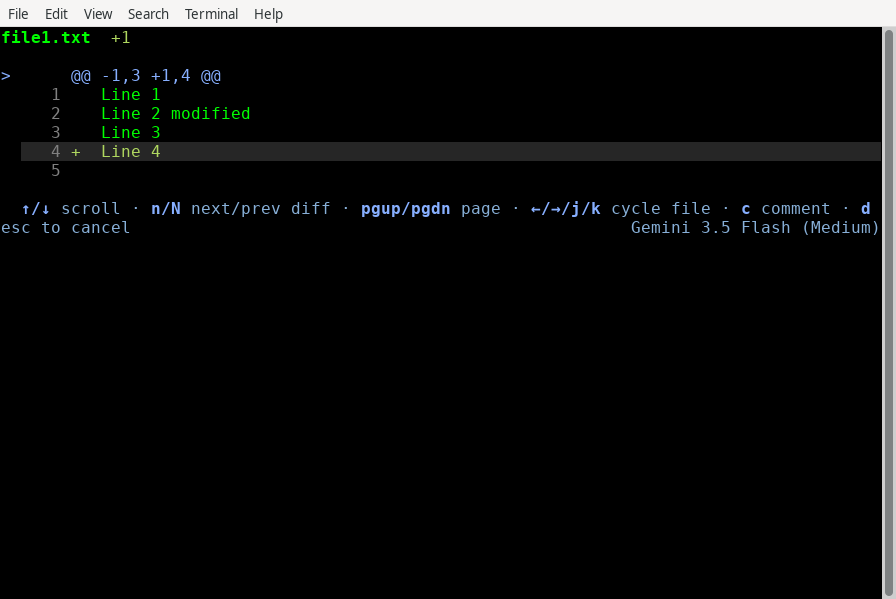
Adding comments and steering the agent
Section titled “Adding comments and steering the agent”While in the Detail View, you can review the code and write feedback directly onto specific lines:
- Locate the line: Scroll to the line you want to comment on.
- Open the comment input: Press C. The Comment Input overlay opens at the bottom:
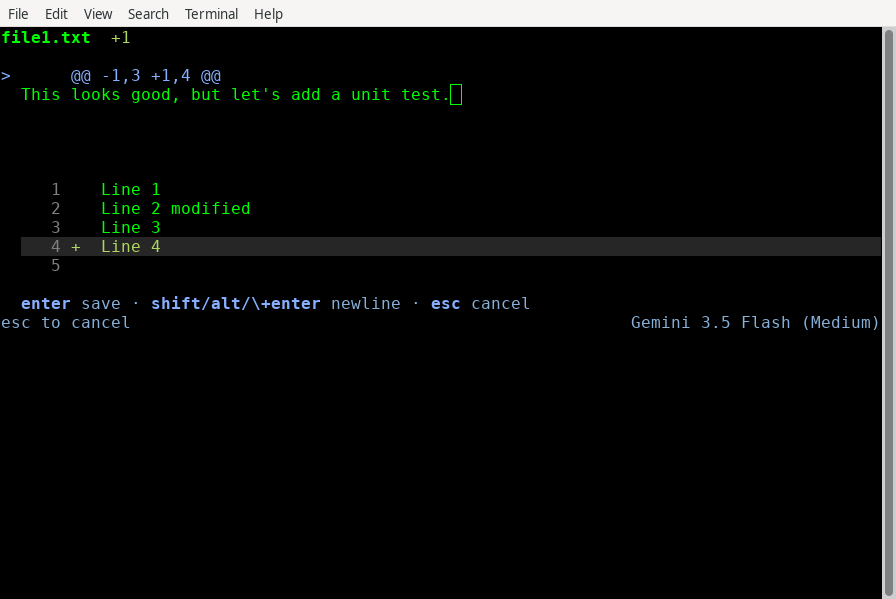
- Write your feedback: Type your feedback and press Enter to save (or Esc to cancel).
- Manage your comments: Saved comments are marked in the diff. You can delete a comment by highlighting the line and pressing D.
- Exit and submit: Press Esc to return to the file list. Press Esc again to exit
/diff. If you have unsaved comments, a confirmation screen appears:
- Press Shift + Y to approve and exit. Your comments are formatted and sent to the agent as your next prompt, allowing you to steer its next turn.
- Press Shift + N to reject and exit, discarding the comments.
Reviewing turn history (Turn mode)
Section titled “Reviewing turn history (Turn mode)”Press Tab to switch to Turn Mode. This groups changes by the conversation turn in which they were introduced, allowing you to inspect what the agent did in previous steps:
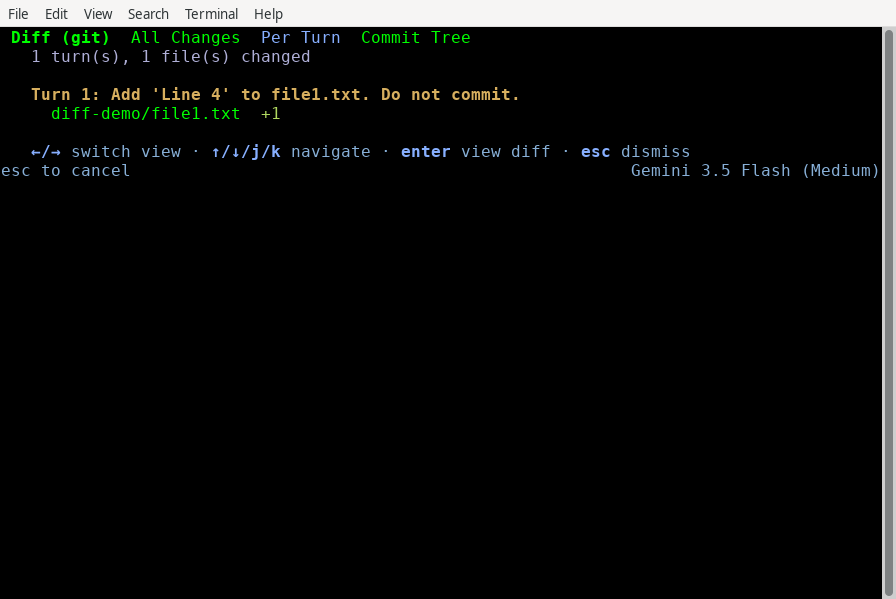
Navigating the commit tree (Commit mode)
Section titled “Navigating the commit tree (Commit mode)”Press Tab again to switch to Commit Mode. This renders the repository’s commit history as an interactive graph. You can navigate up and down the chain, or hop between branches using ←/→:
Highlight any commit and press Enter to load and review its diff:
Keyboard shortcuts reference
Section titled “Keyboard shortcuts reference”File list view (VCS and Turn modes)
Section titled “File list view (VCS and Turn modes)”| Key | Action |
|---|---|
| Tab / → / ← | Cycle modes (VCS > Turn > Commit) |
| ↑ / ↓ (or J / K) | Navigate file list |
| Enter | Open selected file’s Detail View |
| Esc | Exit Diff Viewer |
File detail view
Section titled “File detail view”| Key | Action |
|---|---|
| ↑ / ↓ | Scroll diff content |
| PgUp / PgDn | Scroll diff by page |
| J / K (or → / ←) | Switch to next / previous file |
| N / Shift + N | Jump to next / previous diff hunk |
| C | Add/edit comment on the current line |
| D | Delete comment on the current line |
| Esc | Return to File List View |
Commit tree view (Commit mode)
Section titled “Commit tree view (Commit mode)”| Key | Action |
|---|---|
| ↑ / ↓ | Navigate commit history |
| ← / → | Navigate to adjacent branches in the graph |
| Enter | Load diff for the selected commit |
| Esc | Exit Diff Viewer |
Exit confirmation screen
Section titled “Exit confirmation screen”| Key | Action |
|---|---|
| Shift + Y | Exit and send comments to the agent |
| Shift + N | Exit and discard comments |
| Esc | Return to File List View |
See also
Section titled “See also”Explore the following guides to learn more about CLI customization and conversation management:
- Settings, rendering, and keybindings: Customize your TUI theme, alt-screen preferences, and keybindings.
- Conversations: Learn how to manage, fork, and rewind conversation threads.
- CLI reference: Quick reference for all slash commands and default shortcuts.